
APEX EDGE PRO for Windows.
One installer with everything inside. Sign in with a free account and your 5-day trial starts, on your practice balance, with no card.

Create your free account to download. We send you a confirmation email; the app asks you to confirm it before your trial starts.
The installer is published here the moment a version is released. Your account is ready; write to support@apexedgepro.com to get it today.
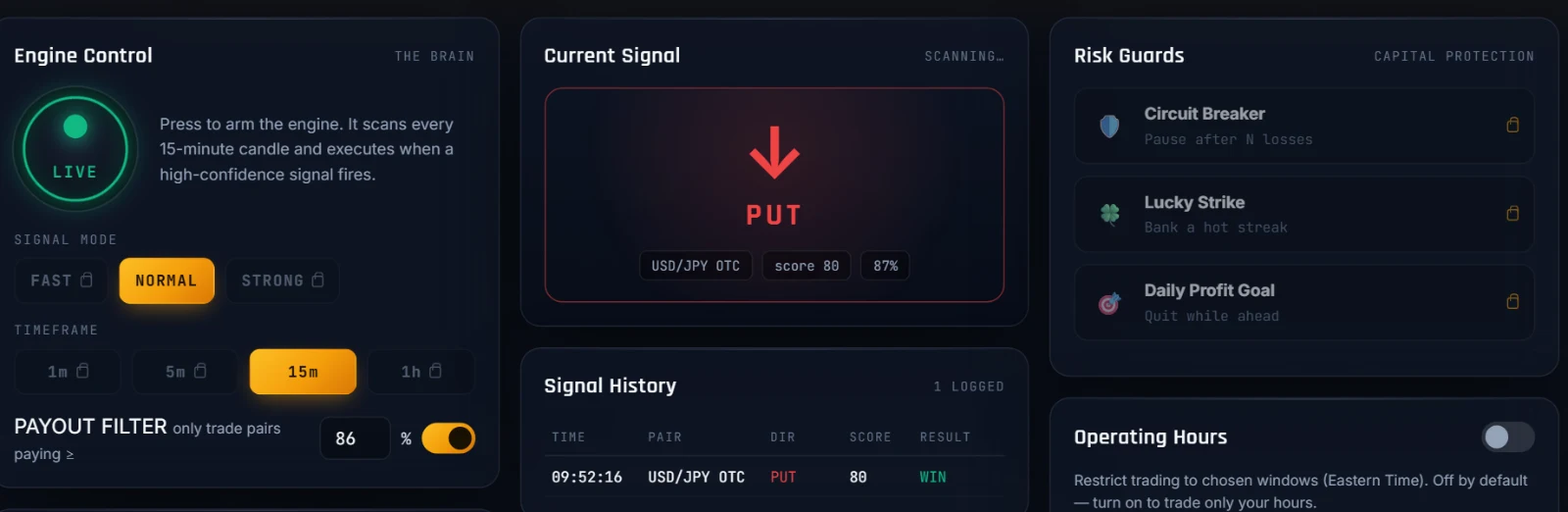
Five minutes from download to a running engine.
- 01
Run the installer
Open the file you downloaded and follow the steps.
- 02
If Windows warns you
A blue "Windows protected your PC" box can appear. Click More info, then Run anyway. Why it appears
- 03
Sign in
Use your APEX EDGE PRO email and password. The trial starts at your first sign-in with a confirmed email.
- 04
Connect Pocket Option
The app opens its own browser window. Sign in to Pocket Option there; those details stay on your computer.
- 05
Watch it on practice
It starts on your practice balance. Move to real money only when you have seen how it behaves.
Why Windows shows a warning, and what to click
When you open the installer, Windows may show a blue box that says "Windows protected your PC". That box is Microsoft Defender SmartScreen. It appears for programs Windows has not seen many times yet and that are not signed with a paid code-signing certificate. It does not mean a virus was found.
APEX EDGE PRO is new and not signed with such a certificate yet, so Windows cannot show a publisher name and asks you first. To continue:
- Click More info (small text under the message).
- Check that the app name shown is the APEX EDGE PRO installer you just downloaded from this page.
- Click Run anyway.
Only do this for a file downloaded from this page. To be certain the file is ours, compare its fingerprint with the one shown in the download box: in PowerShell, Get-FileHash followed by the file's name prints it. Your antivirus may also scan the file the first time; that is normal.
Your sign-in and your passwords
There are two separate sign-ins, and we never see either password.
- Your Pocket Option account. You sign in yourself, on Pocket Option's own site, in the browser window the app opens. Your password goes only to Pocket Option. The app keeps your session in a browser profile on your computer, so you stay signed in next time.
- Optional, if you choose it: when you add several Pocket Option accounts, the app can remember a password for you. Windows keeps it in its own password vault on your computer, never in a plain file, and it is never sent to us.
- Your APEX EDGE PRO account. Your email and password for the license are handled by Google's Firebase sign-in service. We cannot read your password.
What we do keep, and why, is in the privacy policy.
What you need
- Windows 10 or 11 (64-bit)
- A steady internet connection
- A Pocket Option account; the practice balance is enough to start. Create one Partner link
- A free APEX EDGE PRO account. Create one
Updates
When a new version is released, the app tells you and asks for the update before it trades again. Download the new installer from this page and run it; your settings stay.
The first launch checks the app's own files, so it takes a little longer than later ones. Questions? See the FAQ or write to support@apexedgepro.com.